


Before I move in to the implementation I would like to mention the requirements of the VSAN implementation. This is the VMware recommended requirement for the VSAN
- At this moment VMware vSphere 6.0 U2 is recommended with vsan erasure coding (RAID-5/6) (My configuration is based on vSphere 5.5)
- Minimum of three ESXi hosts
- 6GB of Minimum memory for configuration and 32 GB of minimum recommended memory
- In production if ESXi hosts exceeding the 512 GB memory dedicated magnetic disk required for the ESXi hypervisor installation, SD and USB devices are not supported.
- Certified Disk controller , Pass-through/JBOD needs to be supported otherwise single disk needs to be configured as RAID-0
- At least one certified flash disk for caching
- Dedicated 1 GbE NIC or shared 10 GbE, VSAN traffic can be shared with Management, vMotion, Fault Tolerance if it is 10 GbE
- Multicast should be enabled in the VSAN network (L2 or L3)
Setting up the virtual network for the VSAN

Select the connection type as the “VMkernel Network Adapter” and click “Next”

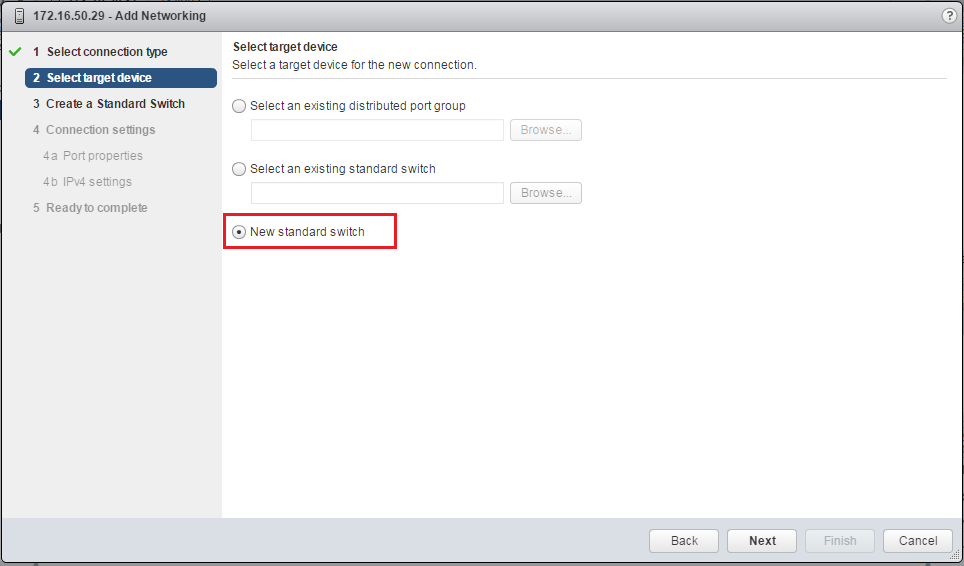
I’m going to create a new “Standard Switch” for this VSAN traffic and select “New Standard Switch” and click “Next”
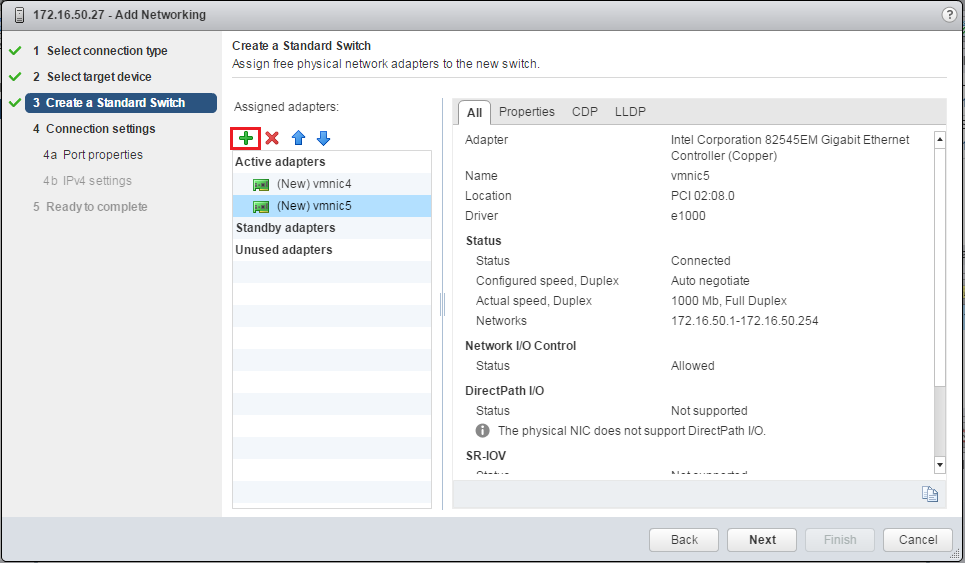
Add two “vmnics” in the next step by clicking the green plus sign under “Assigned Adapters” and click “Next” to continue.
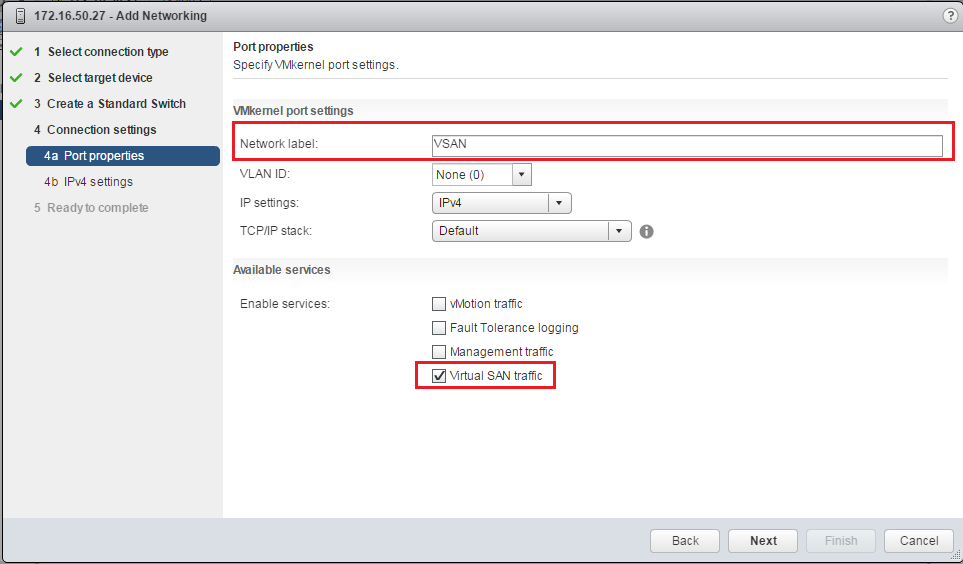
Add a network label and enable the Virtual SAN Traffic in the next step. Click Next to continue
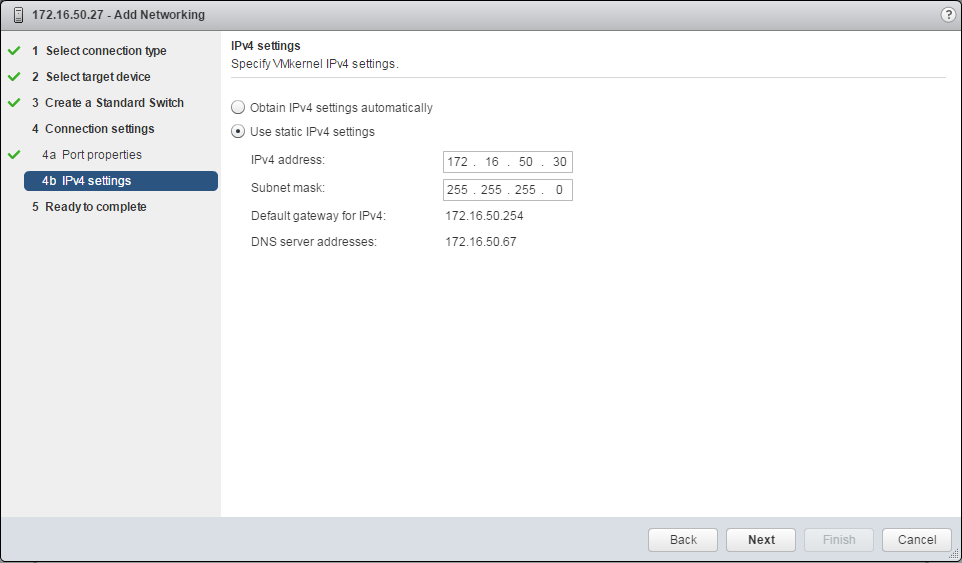
Add an IP Address for your VMKernel and click “Next” to continue.
Review the configuration and Click finish to complete the VSAN standard switch configuration.
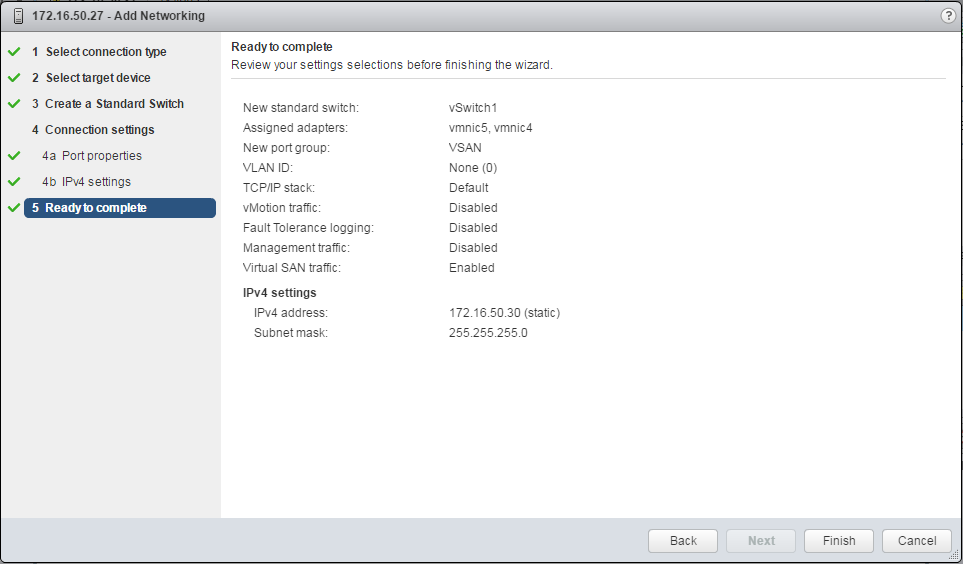
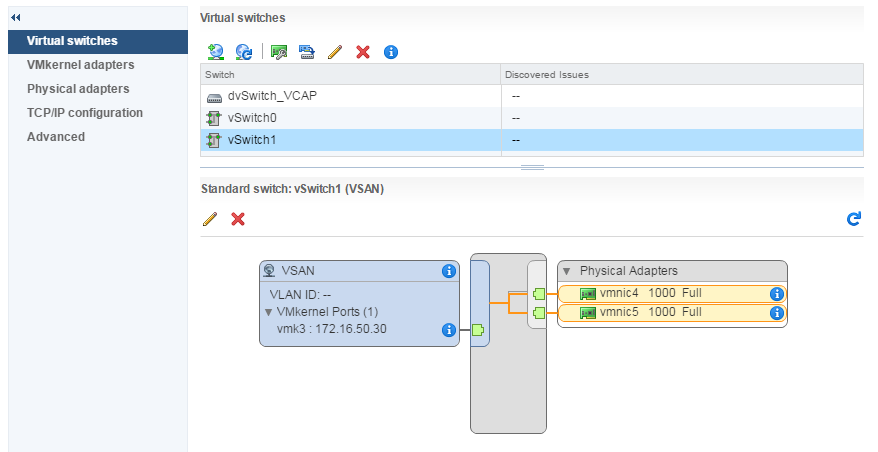
My Standard Switch Configuration is like this
Create the VSAN Cluster

- Automatic – It will claim all the empty disks in your ESXi hosts for your VSAN configuration
- Manual – You have to manually add any new disk for your VSAN
I’m using manual mode for my VSAN configuration
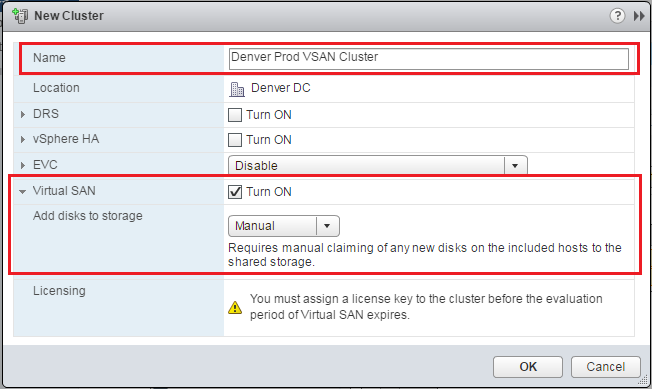
Note: You have to have a separate VMware license for this and 60 days of evaluation licensing will be selected by default. This VSAN feature is not covered under your vCenter License.
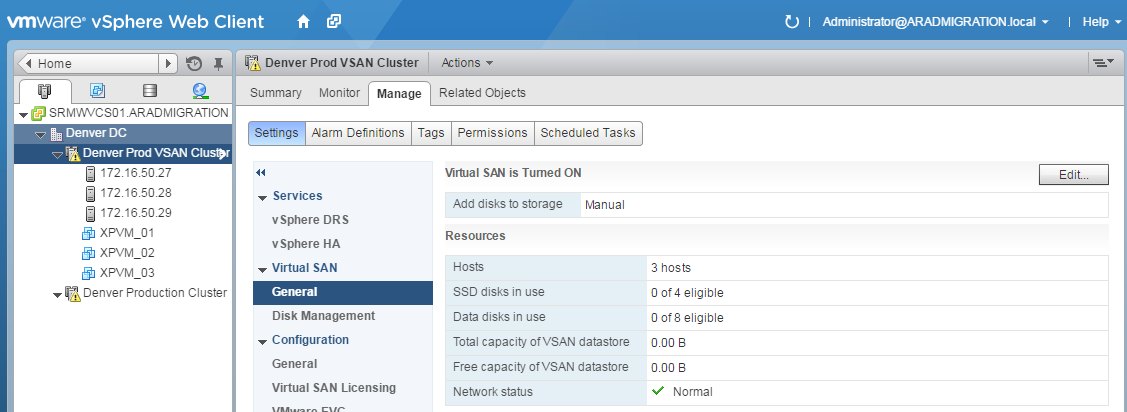
Now drag and drop your ESXi host to the created cluster

You can see the resource and disk utilization and the disk management under the cluster management Section

Creating Disks Groups for the VSAN
We have successfully created the VMware VSAN and now it is time to create the disks groups for the VSAN. When we are creating the VSAN it contains either a combination of Magnetic disks and Flash drives (Hybrid VSAN Configuration) or all Flash drives (All-flash configuration).
- Hybrid VSAN Configuration – one flash device and one or more magnetic divice are configured as a disk group. Normally, one disk group can have up to 7 magnetic disks. Flash devices serve as “read-and-write” cache for the Virtual SAN datastore while magnetic disks serve to create the capacity. By default VSAN use 70% of it’s flash capacity to read and 30% of flash capacity to the write cache. However new features which are available in 6.2 like “De-duplication and Compression” is not available in Hybrid VSAN Configuration.
- All-flash Configuration – Flash devices in the cache tier is only used for the write caching and there is no read caching as the read performance of the capacity devices are more than sufficient for the Virtual SAN.
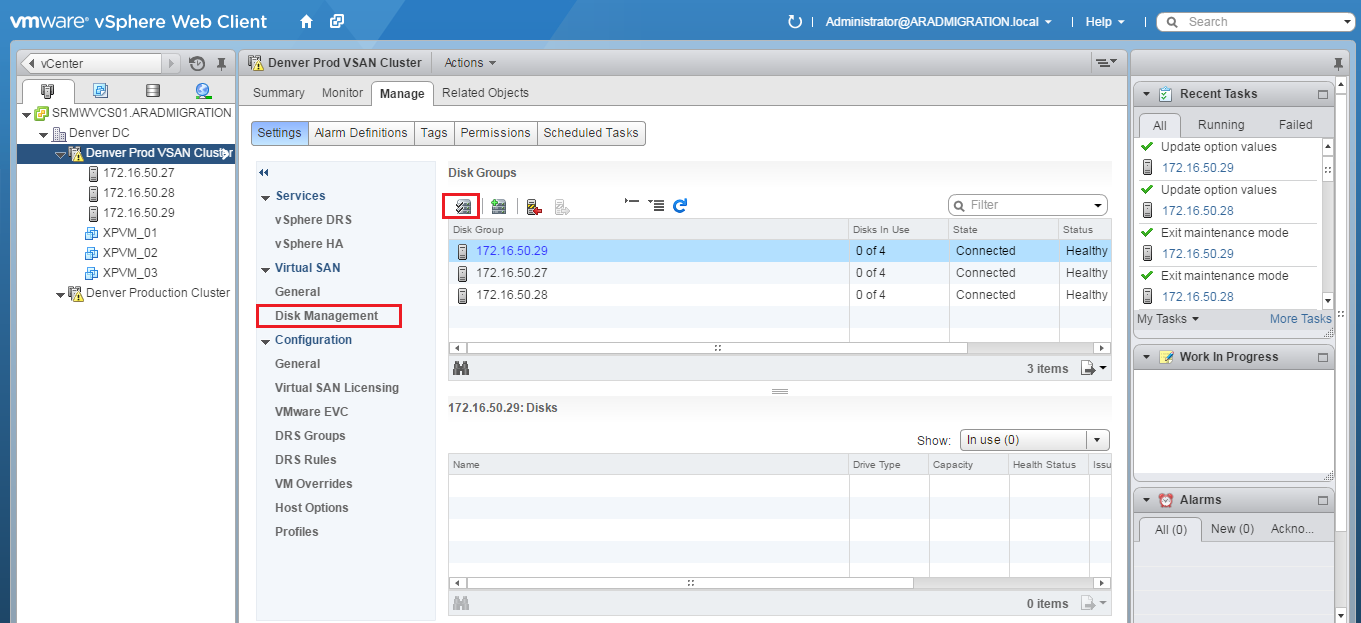
Go to disks management and click on “Claim disks” to claim your Disks for the VSAN
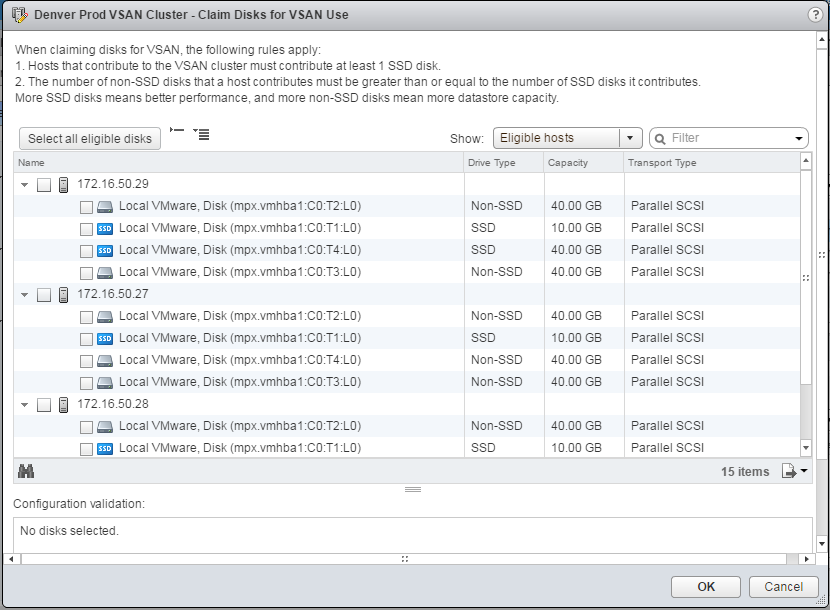
Select the disks which you are going to add to your VSAN datastore, you need to select at least one SSD disks for the Configuration
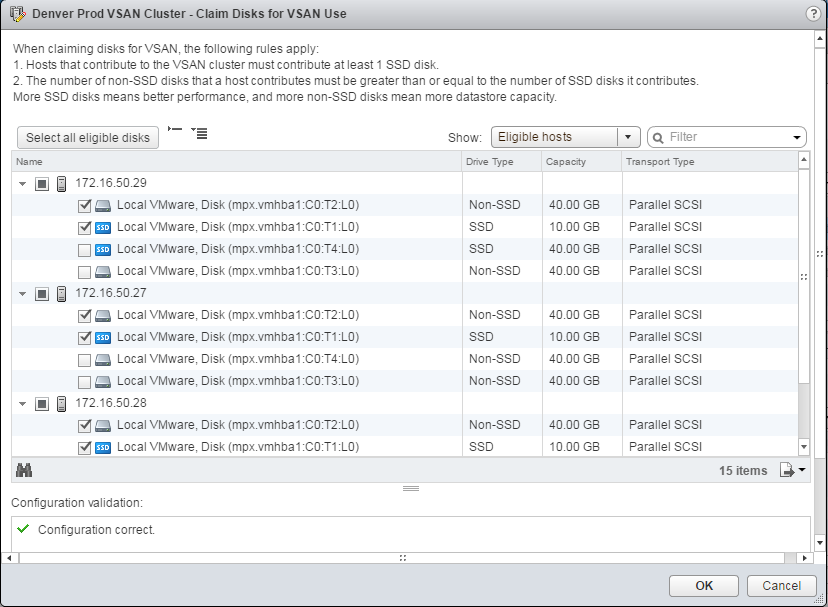
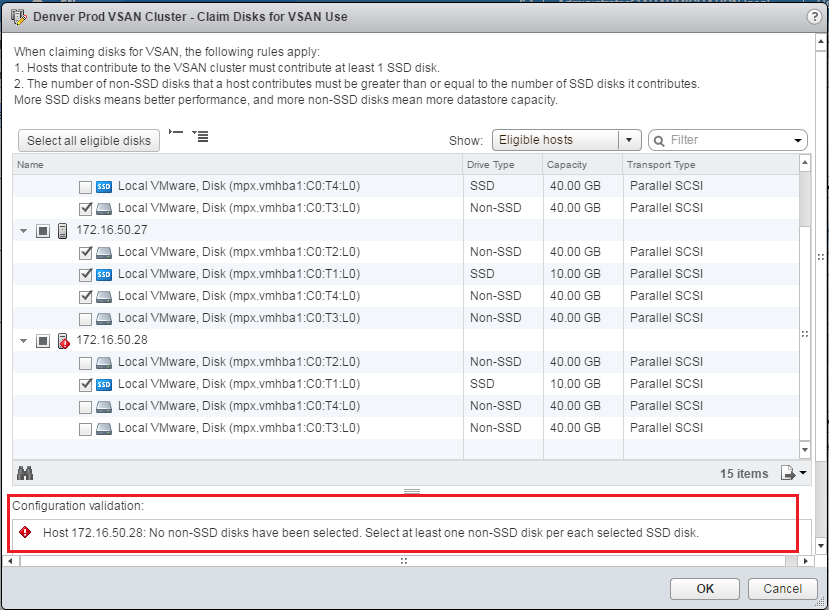
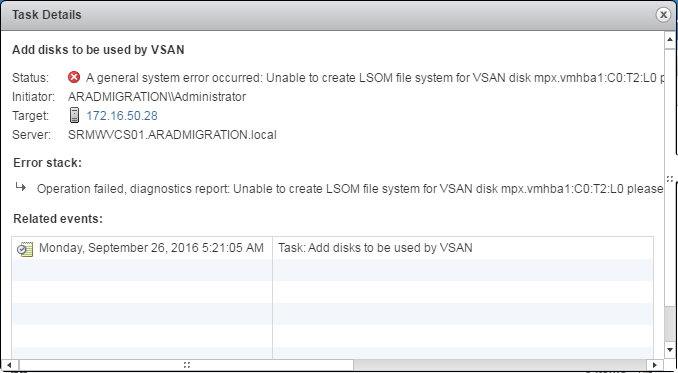
It will perform a disk validation while you are adding the disks and will throw an error if you haven’t select the correct combination of the disks.
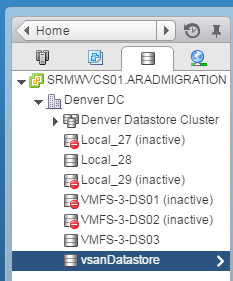
Once you are correctly added the disks to your VSAN datastore it will create the “vsanDatastore” for you and you can see it under your datastores.
Possible Errors when you are adding disks and creating the vsanDatastore

It became a lengthier post and hope you enjoyed and found some value in this. Thanks for reading my post.


Leave a Reply